WPX AI MCP Local device connection guide
Local only 127.0.0.1:8765

LOCAL DEVICE BRIDGE

WPX AI MCP

Switch a selected WPX device to AI MCP mode in the device manager. The local service owns the device connection so an MCP-capable AI client can safely call measurement and analysis tools.

Transport
Streamable HTTP
Address
127.0.0.1
Devices
WPX-01A / WPX-S1

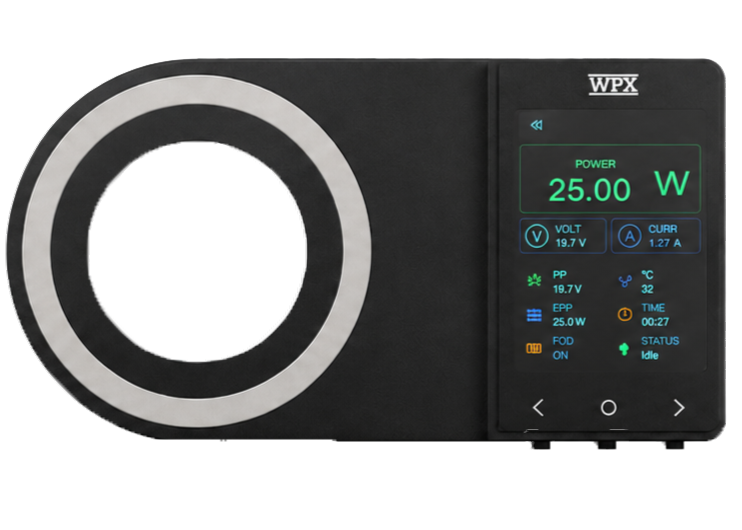
WPX-01A wireless power tester
Power testing WPX-01A
WPX-S1 Qi protocol analyzer
Protocol capture WPX-S1

01

QUICK START

Quick start

Device connection and AI client connection are separate steps. Follow this order.

  1. 1

    Select a device

    Open the WPX device manager, wait for the scan to finish, and select a device in normal mode.

  2. 2

    Switch mode

    Select “AI MCP” mode and start it. A regular device window and MCP mode cannot use the same device at the same time.

  3. 3

    Wait until ready

    Configure the client after the status changes to “Service ready”. Keep the status window open.

  4. 4

    Copy and connect

    Click “Copy configuration” in the status window, paste it into the AI client, and complete the MCP connection.

AI MCP status Service ready
WPX-S1 · COM7
Local endpoint http://127.0.0.1:8765/mcp
Capture does not start automatically

WPX-S1 MCP mode only establishes the device and service connection. Capture starts only after wpxs1_start_capture; WPX-01A telemetry must also be started explicitly.

02

CLIENT CONFIGURATION

Copy configuration

Every client connects to the same local Streamable HTTP endpoint.

Use the token from the status window

The snippets below are format templates and cannot connect on their own. After each startup, copy the configuration with the current token from the status window.

General client

Streamable HTTP JSON

{
  "name": "WPX AI MCP",
  "transport": "streamable-http",
  "url": "http://127.0.0.1:8765/mcp",
  "headers": {
    "Authorization": "Bearer <real token from Copy configuration>"
  }
}
Codex

config.toml

[mcp_servers.wpx_ai]
url = "http://127.0.0.1:8765/mcp"
http_headers = { Authorization = "Bearer <TOKEN>" }
Successful connection The client should list tools starting with device_, wpx01a_, or wpxs1_.
POST /mcp

03

TOOL REFERENCE

Complete tool reference

The service exposes tools for the connected device type. Tools without listed parameters take no arguments.

Common devices

Available for every MCP-capable device.

ToolParametersPurpose
device_get_statusNoneRead service, device connection, and current runtime status.
device_get_infoNoneRead device identity, version, and capability information.

WPX-01A

Identity refresh and explicit telemetry control.

ToolParametersPurpose
wpx01a_refresh_identityNoneRefresh serial number, firmware, and hardware identity.
wpx01a_start_telemetryNoneStart receiving live WPX-01A telemetry.
wpx01a_stop_telemetryNoneStop telemetry while keeping the data already buffered.
wpx01a_get_latest_telemetryNoneRead the latest available telemetry sample.
wpx01a_get_telemetry_history seconds=60
max_points=120
Read downsampled telemetry history for a selected time window.

WPX-S1

Capture lifecycle, protocol packets, frequency, and pipeline diagnostics.

ToolParametersPurpose
wpxs1_start_captureNoneStart a new capture session from the stopped state.
wpxs1_pause_captureNonePause delivery of the current capture to clients.
wpxs1_resume_capture reset_time_base=true Resume a paused capture; reset the display time base by default.
wpxs1_stop_captureNoneStop the current capture and freeze its completed state.
wpxs1_get_capture_statusNoneRead capture state, session, and counter summaries.
wpxs1_get_stream_infoNoneRead the device-declared sample rate and stream parameters.
wpxs1_get_recent_packets cursor=null
limit=50
modulation=null
valid_only=false
Page through recent protocol packets, filtering by modulation and validity.
wpxs1_get_latest_frequencyNoneRead the latest carrier-frequency state.
wpxs1_get_latest_heartbeatNoneRead the latest device heartbeat and error counters.
wpxs1_get_pipeline_statisticsNoneRead cumulative USB, queue, and parsing-pipeline statistics.

04

PROMPT EXAMPLES

Prompt examples

Ask the AI to check status first, then explicitly request telemetry or capture when needed.

General checkdevice_*

Check the connected device status, model, serial number, and firmware version, then list the available device-specific tools.

WPX-01A trendwpx01a_*

Start WPX-01A telemetry, wait for stable samples, read up to 120 points from the last 60 seconds, and summarize power, voltage, current, and temperature changes.

WPX-S1 read-only checkwpxs1_*

Do not start capture. Read the WPX-S1 capture status, stream info, latest heartbeat, and pipeline statistics to assess the device link.

WPX-S1 packet analysiswpxs1_get_recent_packets

Start WPX-S1 capture, read the latest 50 valid protocol packets, group them by ASK/FSK, and summarize repeated headers, checksum anomalies, and timing order.

05

SECURITY BOUNDARIES

Security boundaries

MCP can operate real hardware. Treat the local endpoint, tokens, and device ownership as one security boundary.

Local only

The service listens only on 127.0.0.1. Do not proxy it, forward it, or change it to a LAN address.

Protect tokens

Do not share configuration, screenshots, or tokens. Old tokens should not be reused after the service stops.

Single client

Connect only one AI client at a time so multiple agents cannot change capture or telemetry state concurrently.

Exclusive device access

Do not open a regular device window or another serial tool while MCP mode is active.

Stop the service before leaving Stop capture or telemetry first, then stop the MCP service in the status window and confirm that the device is released.

06

TROUBLESHOOTING

Troubleshooting

Check the status window, connection configuration, and device capture state in that order.

AI client cannot connect to the endpoint

Make sure the status window is open and shows “Service ready”. The address must be http://127.0.0.1:8765/mcp and the transport must be Streamable HTTP.

401 or token error

Do not reuse an old token manually. Return to the current status window, click “Copy configuration”, and replace the client URL and Authorization header.

Port 8765 is already in use

Close another WPX AI MCP status window or the old process using that port, then restart the service. Do not bind the service to an external network address.

Device-specific tools are missing

Call device_get_status and device_get_info first. Confirm the model and connection, then refresh the MCP tool list after fixing the issue.

WPX-01A has no telemetry data

Telemetry is off by default. Call wpx01a_start_telemetry, wait for a sample, then read the latest value or history.

WPX-S1 has no packet or frequency data

Capture is off by default. Call wpxs1_start_capture, check capture status and stream info, and use wpxs1_resume_capture when paused.

Connection stops when the status window closes

This is expected. The status window owns the local service and device connection. Re-enter AI MCP mode and copy a new configuration before reconnecting.